Your CRHQ server now supports multiple user accounts. Where there used to be a single login, you can create and manage multiple accounts, each with its own login, role, and two-factor authentication.
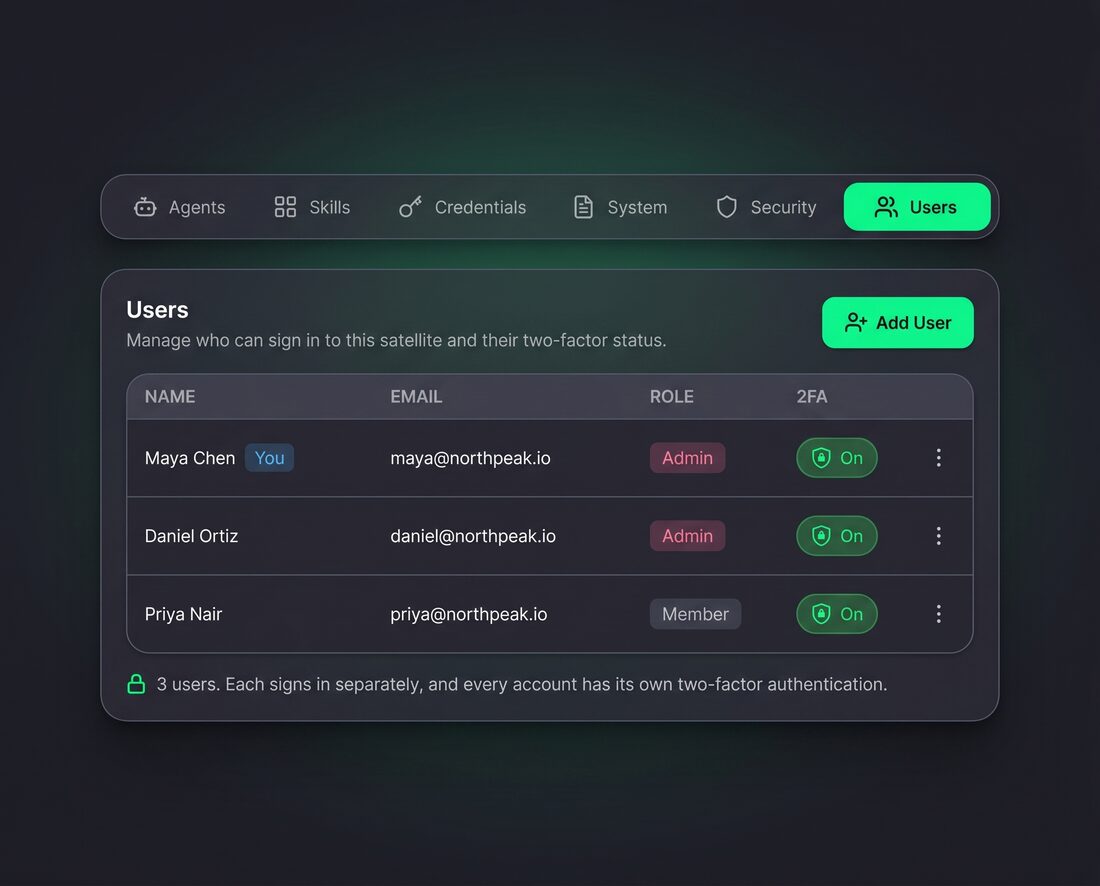
What is new
Multiple user accounts. Add teammates directly from your server. Each person gets their own login instead of sharing credentials.
Admin and member roles. Make each person an admin (who can manage users and 2FA) or a member (who manages their own account only). The last admin on an account cannot be demoted or deleted, so you can never accidentally lock yourself out.
Per-user two-factor authentication. Every account has its own 2FA setup. Each person configures their own authenticator app from their Account page.
Secure provisioning. When you create a user, a temporary password is shown once and never stored in plaintext. The new user signs in and sets their own password and 2FA from their Account page.
How to use it
Open Settings and go to Users. From there you can:
- Add a new user (set their email, display name, and role)
- Change a user's role between admin and member
- Reset a user's password (generates a new temporary password)
- Disable a user's 2FA if they lose access to their authenticator
- Remove a user from the server
The Users section is only visible to admins. Members can manage their own password and 2FA from their Account page.
Security recommendation
We strongly recommend enabling two-factor authentication on every account. It takes about a minute to set up and is the single most effective way to protect access to your server.