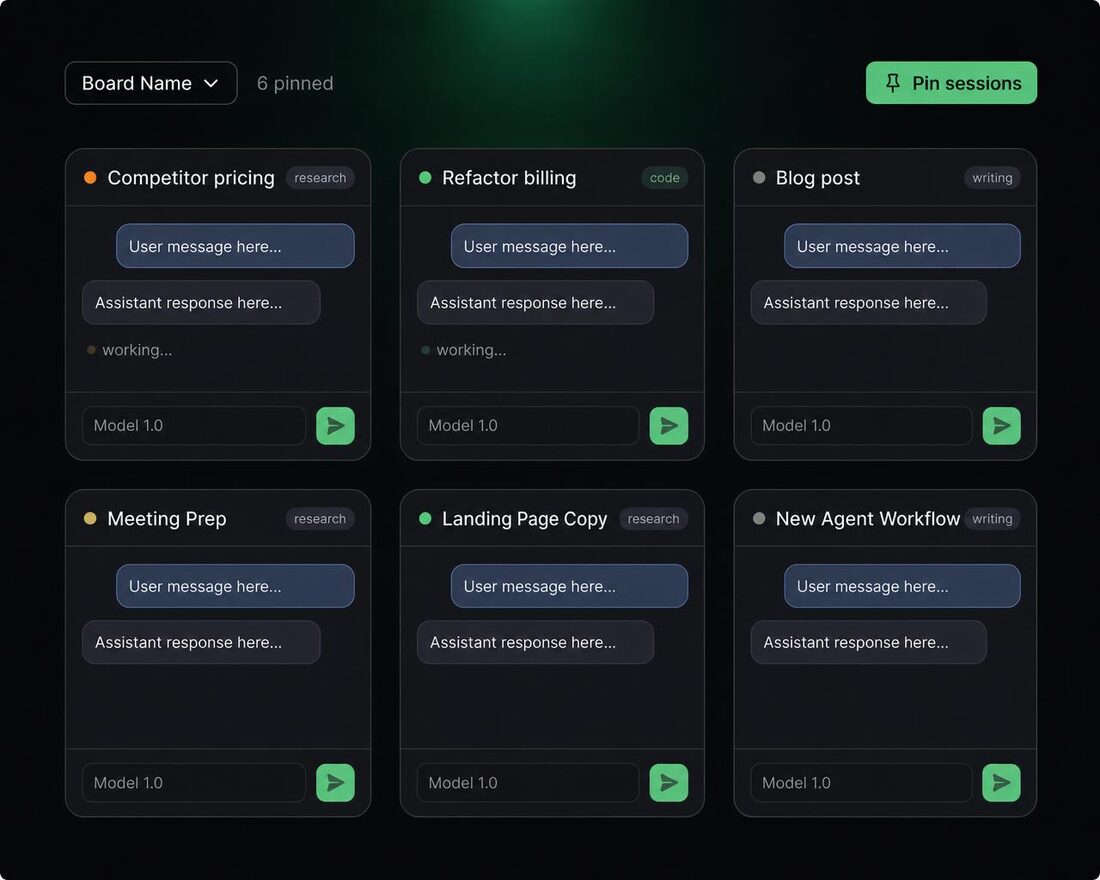
Boards turn your CRHQ server into a multi-session workspace. Instead of working one session at a time, you can pin many sessions onto a board and watch them run side by side.
How boards work
A board is a workspace that holds pinned sessions. The default layout is three columns across and two rows, giving you six sessions at once, each with its own input, model selector, and live output. You can create as many boards as you like and move sessions between them.
Pin sessions. Use the Pin sessions button to add any existing session to the current board. New sessions created from the board are pinned automatically.
Work any card in place. Type into any session directly from the board, switch its model, attach files, or open it full screen when you need to dig in.
Drag to reorder. Cards are draggable. Rearrange them however makes sense for your workflow.
Column density. Choose 3, 4, or 6 columns to match your screen and how many sessions you want visible at once.
Multiple boards. Create as many boards as you need and switch between them from the board name selector in the top bar.
A few ways to organize
An ideas board. When an idea strikes, start a session, ask the agent to investigate it, and park it on your Ideas board to pick up later. Keep building context without losing the thread.
A board per person. If your team shares a server, each person can have their own board so sessions stay organized by owner and never get mixed up.
A board per project or client. Keep each project or client in its own board. The right sessions always stay together and context never gets mixed up.
Now and later. Keep one board for what is active this week, and another for things you want to come back to. Your backlog stays visible without cluttering your working view.
How to access boards
Open Boards from the grid icon in the sidebar of your CRHQ server.